GO banking FAQ- Business
STANDING INSTRUCTIONS
- Once logged into Go-Banking, click on the toggle aka ‘Hamburger’ icon
 to view your main menu.
 - From your main menu select the following sub-menus:

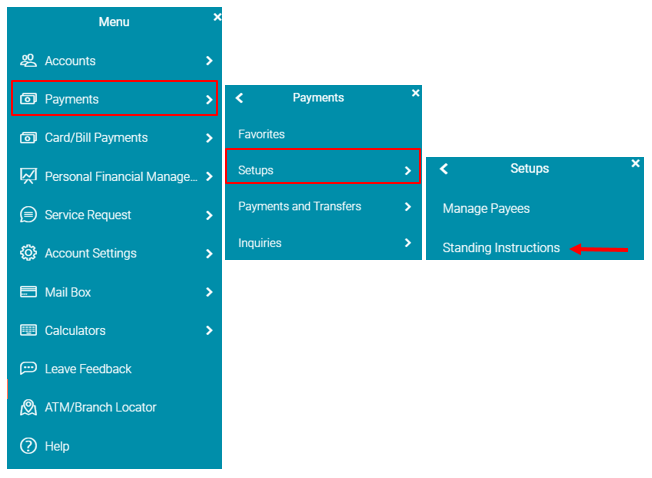
- A screen will appear for you to select one of two tabs:
- View Standing Instructions
- Setup Standing Instruction
NB: You can only setup Standing Instructions for the following transactions:
- Transfer between your own accounts
- Transfer to another GBTI account
- Wire Transfer
VIEW STANDING INSTRUCTIONS
- Once
 clicked, the following screen will appear.
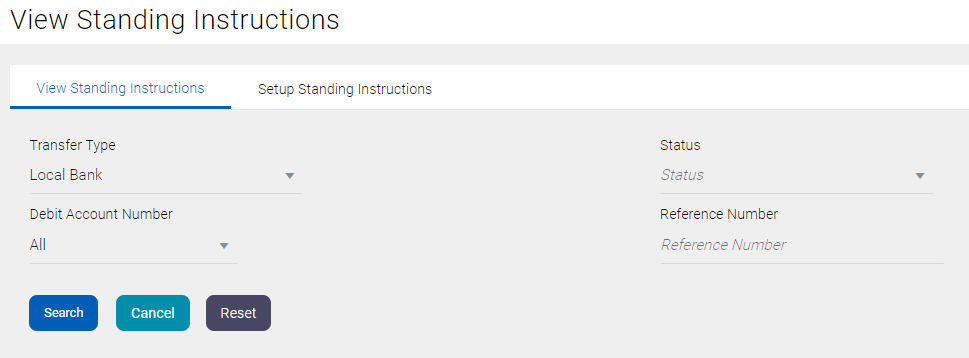
Figure III – View Standing Instruction.
- In addition to searching for your Standing Instruction by a ‘Reference’ number, the following search criteria is available.
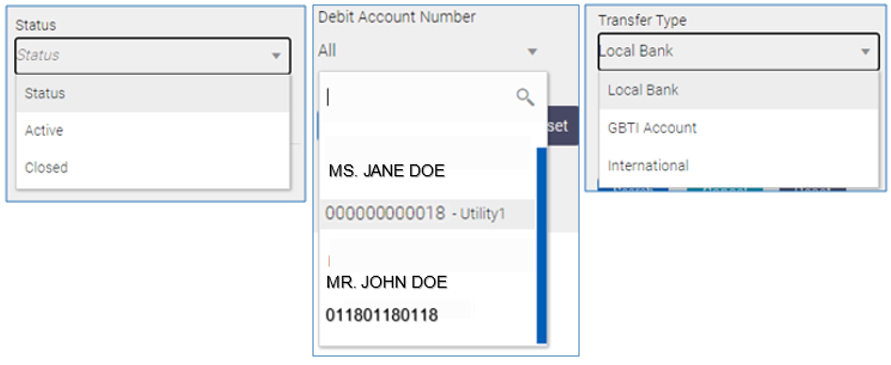
- Once you have searched for a Standing Instruction, the screen below will appear. Click on the eclipse/more option icon to view additional details of the Standing Instruction OR stop the instruction.
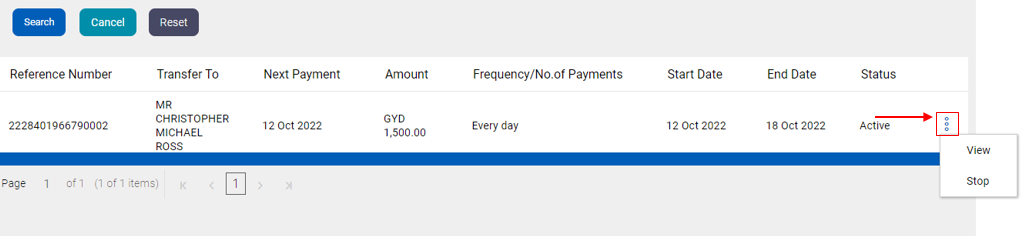
SETUP STANDING INSTRUCTIONS
- Select the ‘Setup Standing Instructions’ tab
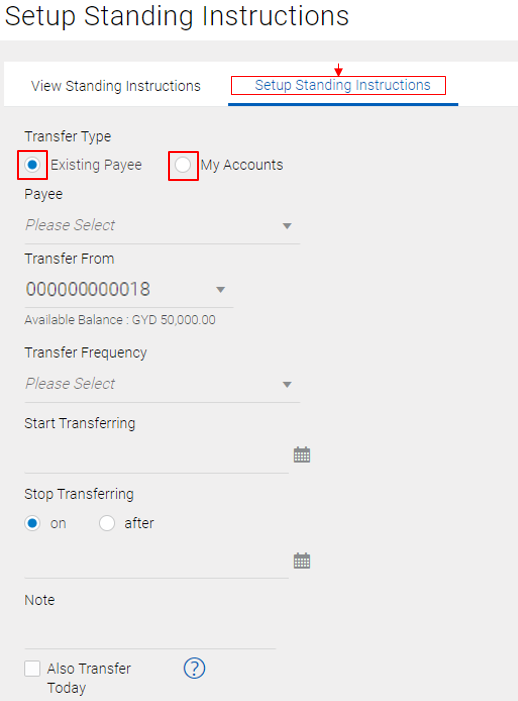
You can setup an OWN account transfer Standing instruction by choosing  OR Setup a Standing instruction to a Payee already establish to your profile
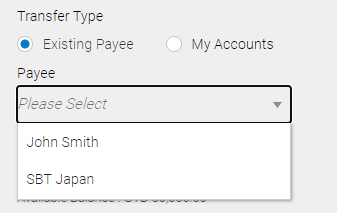
- If Existing Payee is selected, the dropdown list will display the Payees you’ve added to your profile. See Manage a Payee Guide for steps on how to add a Payee to your profile
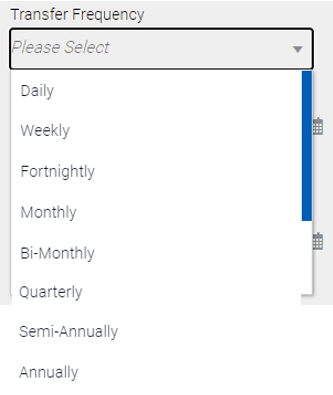
- The following Frequencies are available:
- Utilize your calendar icon
 to select your Standing instruction ‘Start’ and ‘End’ date: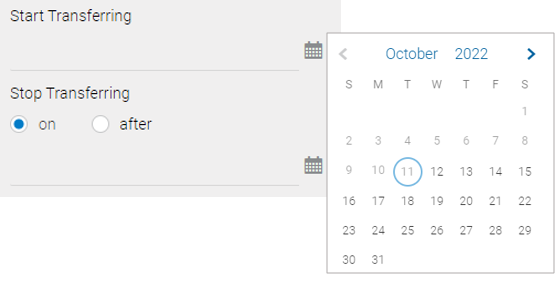
- Once all the fields are populated, click
 followed by clicking on
  the very next screen to complete the standing Instruction.
FAQ term deposit
- Once logged into Go-Banking, click on the toggle aka ‘Hamburger’ icon
 to view your menu.
 - From your main menu, select
 then select
  to view the activities that can be performed.
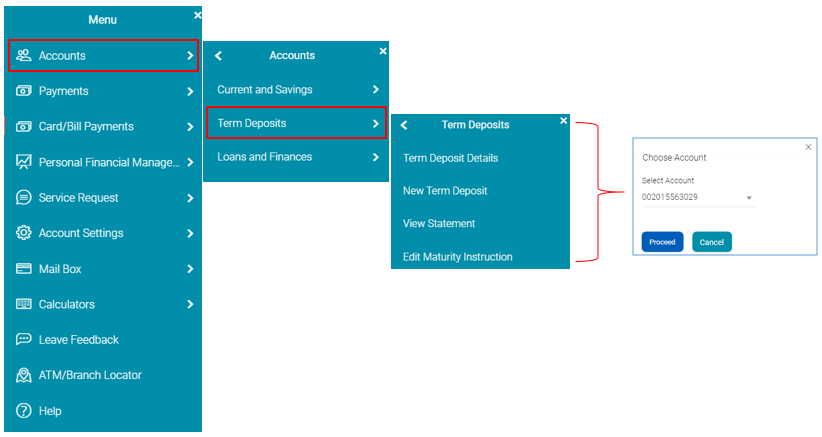
OR
- From your My Account widget of the Dashboard, click on the Term Deposits
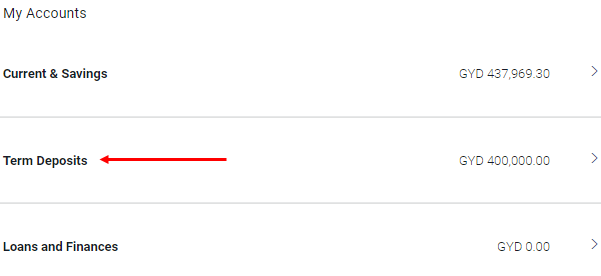
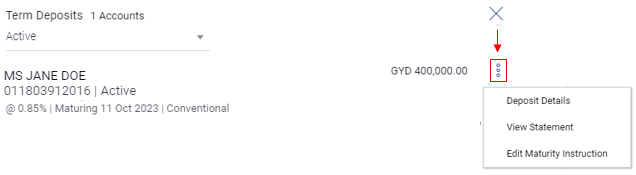
- Click on the more option/eclipse icon
 to the right of your Term Deposit account number.